
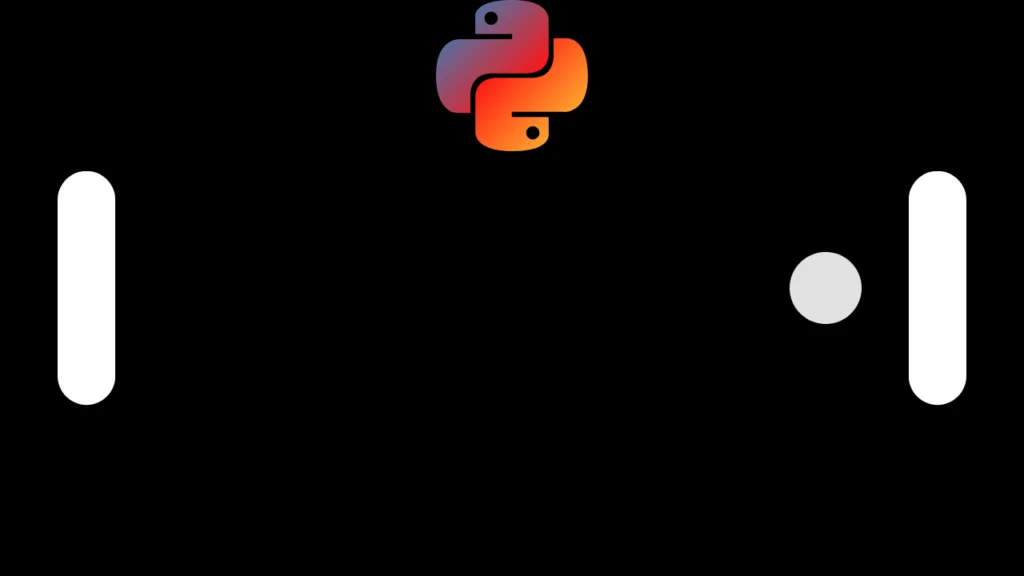
Here you find Pong Game In Python Code or Python Pong Game complete code then you need to just copy and paste the code editor, Hello my dear python lovers Today in this article I want to share How to code a pong game in Python with custom Robot AI, So our challenge is to make 2 user First user is you and 2nd user is AI Robot including 100 accurate. Hi Buddy my name is Amol and I am the founder of amolblog.com. This is the Python turtle pong project Code If you have any other requests or project ideas then please share them with YouTube Channel.
Please note: If you want only the final code please jump to the Final code see below table of contents.
Step 1 import set up turtle and Screen
# Step 1 import set up turtle and Screen
import turtle
import random
s = turtle.Screen()
s.title("Pong")
s.bgcolor("black")
s.setup(width=600, height=400)
Step 2 Create a ball
# Step 2 Create ball
ball = turtle.Turtle()
ball.speed(0)
ball.shape("circle")
ball.color("white")
ball.penup()
ball.goto(0, 0)
ball.dx = 4
ball.dy = 4
Step 3 Create an AI paddle
# Step 3 Create AI paddle
ai = turtle.Turtle()
ai.speed(0)
ai.shape("square")
ai.color("white")
ai.penup()
ai.goto(-250, 0)
ai.shapesize(stretch_wid=5, stretch_len=1)
Step 4 Create a paddle For You
# Step 4 Create a paddle For You
you = turtle.Turtle()
you.speed(0)
you.shape("square")
you.color("white")
you.penup()
you.goto(250, 0)
you.shapesize(stretch_wid=5, stretch_len=1)
Step 5 Create a Function to move the AI paddle
# Step 5 Create Function to move AI paddle
def move_ai_paddle():
    y = ball.ycor()
    if y > 0:
        ai.sety(ai.ycor() + 2)
    else:
        ai.sety(ai.ycor() - 2)
Step 6 Create a Function to move your paddle and control it with key
# Step 6 Create a Function to move the your paddle with up and down key
def paddle2_up():
    y = you.ycor()
    y += 20
    you.sety(y)

def paddle2_down():
    y = you.ycor()
    y -= 20
    you.sety(y)
# Your Paddle control it with key
s.listen()
s.onkeypress(paddle2_up, "Up")
s.onkeypress(paddle2_down, "Down")
Step 7 Start the game with a while loop
# Step 7 Start the game with a while loop
while True:
    s.update()

    # Move the ball
    ball.setx(ball.xcor() + ball.dx)
    ball.sety(ball.ycor() + ball.dy)

    # Check for collisions with the walls
    if ball.ycor() > 190 or ball.ycor() < -190:
        ball.dy *= -1

    # Move the robot paddle towards the ball
    if ball.ycor() > ai.ycor():
        ai.sety(ai.ycor() + 4)
    elif ball.ycor() < ai.ycor():
        ai.sety(ai.ycor() - 4)

           # Check for end game conditions
    if ball.xcor() > 300:
        turtle.textinput("Game End", "You Loss Pong Game With AI!")
        break
    if ball.xcor() < -300:
        turtle.textinput("Game End", "You Win Pong Game With AI!")
        break

    # Check for collisions with the robot paddle
    if (ball.xcor() < -240 and ball.xcor() > -250) and (ball.ycor() < ai.ycor() + 40 and ball.ycor() > ai.ycor() - 40):
        if random.random() < 0.9: # 90% chance of collision
            ball.dx *= -1

        # Check for collisions with the user paddle
    if (ball.xcor() > 240 and ball.xcor() < 250) and (ball.ycor() < you.ycor() + 40 and ball.ycor() > you.ycor() - 40):
        ball.dx *= -1
Final code
# Step 1 import set up turtle and Screen
import turtle
import random
s = turtle.Screen()
s.title("Pong")
s.bgcolor("black")
s.setup(width=600, height=400)

# Step 2 Create ball
ball = turtle.Turtle()
ball.speed(0)
ball.shape("circle")
ball.color("white")
ball.penup()
ball.goto(0, 0)
ball.dx = 4
ball.dy = 4

# Step 3 Create AI paddle
ai = turtle.Turtle()
ai.speed(0)
ai.shape("square")
ai.color("white")
ai.penup()
ai.goto(-250, 0)
ai.shapesize(stretch_wid=5, stretch_len=1)

# Step 4 Create a paddle For You
you = turtle.Turtle()
you.speed(0)
you.shape("square")
you.color("white")
you.penup()
you.goto(250, 0)
you.shapesize(stretch_wid=5, stretch_len=1)

# Step 5 Create Function to move AI paddle
def move_ai_paddle():
    y = ball.ycor()
    if y > 0:
        ai.sety(ai.ycor() + 2)
    else:
        ai.sety(ai.ycor() - 2)

# Step 6 Create a Function to move the your paddle
def paddle2_up():
    y = you.ycor()
    y += 20
    you.sety(y)

def paddle2_down():
    y = you.ycor()
    y -= 20
    you.sety(y)
# Your Paddle control it with key
s.listen()
s.onkeypress(paddle2_up, "Up")
s.onkeypress(paddle2_down, "Down")

# Step 7 Start the game with a while loop
while True:
    s.update()

    # Move the ball
    ball.setx(ball.xcor() + ball.dx)
    ball.sety(ball.ycor() + ball.dy)

    # Check for collisions with the walls
    if ball.ycor() > 190 or ball.ycor() < -190:
        ball.dy *= -1

    # Move the robot paddle towards the ball
    if ball.ycor() > ai.ycor():
        ai.sety(ai.ycor() + 4)
    elif ball.ycor() < ai.ycor():
        ai.sety(ai.ycor() - 4)

           # Check for end game conditions
    if ball.xcor() > 300:
        turtle.textinput("Game End", "You Loss Pong Game With AI!")
        break
    if ball.xcor() < -300:
        turtle.textinput("Game End", "You Win Pong Game With AI!")
        break

    # Check for collisions with the robot paddle
    if (ball.xcor() < -240 and ball.xcor() > -250) and (ball.ycor() < ai.ycor() + 40 and ball.ycor() > ai.ycor() - 40):
        if random.random() < 0.9: # 90% chance of collision
            ball.dx *= -1

        # Check for collisions with the user paddle
    if (ball.xcor() > 240 and ball.xcor() < 250) and (ball.ycor() < you.ycor() + 40 and ball.ycor() > you.ycor() - 40):
        ball.dx *= -1

turtle.exitonclick()
How To make pong game paddle in a python turtle?
you = turtle.Turtle()
you.speed(0)
you.shape(“square”)
you.color(“white”)
you.penup()
you.goto(250, 0)
you.shapesize(stretch_wid=5, stretch_len=1)
How To create a pong game in python?
Step 1 import set up turtle and Screen
Step 2 Create a ball
Step 3 Create an AI paddle
Step 4 Create a paddle For You
Step 5 Create a Function to move the AI paddle
Step 6 Create a Function to move your paddle and control it with key
Step 7 Start the game with a while loop
Another Turtle Python Project For You:
Python Love heart shape with RGB light.
The Nokia classic snake game in Python code.