
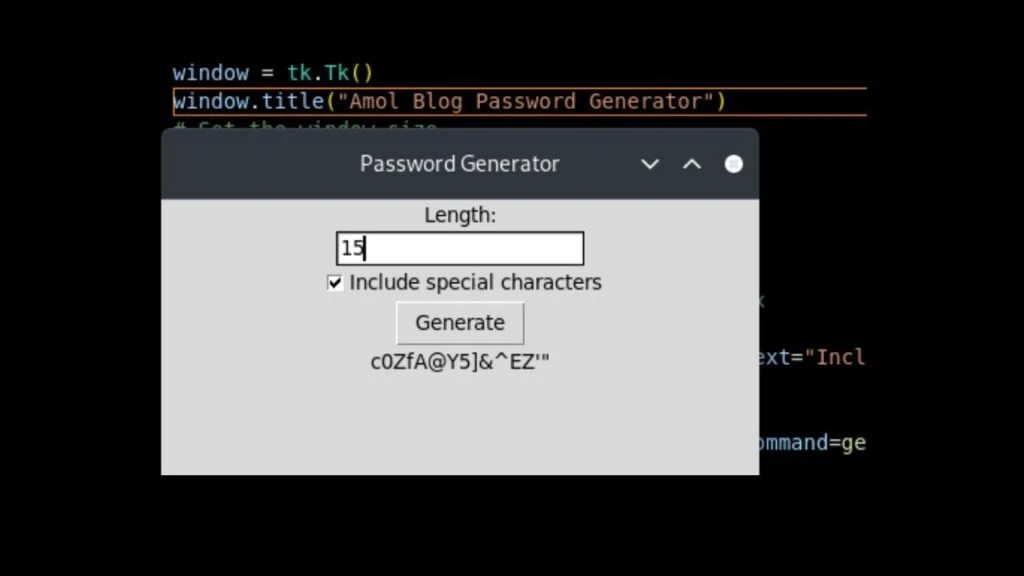
Today in this article we will share Python Tkinter Password Generator projects with source code, So our challenge is to make a Password Generator with unlimited password length with a special character option with a large window. Hi Buddy my name is Amol and I am the founder of amolblog.com.
If you have any other requests or project ideas then please share them with YouTube Channel.
Please note: If you want only the final code please jump to the Final code see below table of contents.
Step 1 import python modules
#Step 1 import module
import random
import string
import tkinter as tk
Step 2 Generate Password
#Step 2 Generate Password
def generate_password():
    # Get the length of the password
    length = length_entry.get()
    # Make sure the length is a valid number
    try:
        length = int(length)
    except ValueError:
        result_label.config(text="Error: Invalid length")
        return
    # Check if the user wants special characters
    if special_characters_var.get() == 1:
        characters = string.ascii_letters + string.digits + string.punctuation
    else:
        characters = string.ascii_letters + string.digits
    # Generate the password
    password = "".join(random.choices(characters, k=length))
    # Display the password
    result_label.config(text=password)
Step 3 Create the tk main window
# Step 3 Create the main window
window = tk.Tk()
window.title("Amol Blog Password Generator")
# Set the window size
window.geometry("400x400")
# Create the length entry
length_label = tk.Label(text="Length:")
length_entry = tk.Entry()
Step 4 Create the special characters checkbox
# Step 4 Create the special characters checkbox
special_characters_var = tk.IntVar()
special_characters_checkbox = tk.Checkbutton(text="Include special characters", variable=special_characters_var)
Step 5 Create the generate button
# Step 5 Create the generate button
generate_button = tk.Button(text="Generate", command=generate_password)
Step 6 Create the result label
# Stpe 6 Create the result label
result_label = tk.Label(text="")
# Add the widgets to the window
length_label.pack()
length_entry.pack()
special_characters_checkbox.pack()
generate_button.pack()
result_label.pack()
# Run the main loop
window.mainloop()
Final code
#Step 1 import module
import random
import string
import tkinter as tk

#Step 2 Generate Password
def generate_password():
    # Get the length of the password
    length = length_entry.get()
    # Make sure the length is a valid number
    try:
        length = int(length)
    except ValueError:
        result_label.config(text="Error: Invalid length")
        return
    # Check if the user wants special characters
    if special_characters_var.get() == 1:
        characters = string.ascii_letters + string.digits + string.punctuation
    else:
        characters = string.ascii_letters + string.digits
    # Generate the password
    password = "".join(random.choices(characters, k=length))
    # Display the password
    result_label.config(text=password)

# Step 3 Create the main window
window = tk.Tk()
window.title("Amol Blog Password Generator")
# Set the window size
window.geometry("400x400")
# Create the length entry
length_label = tk.Label(text="Length:")
length_entry = tk.Entry()

# Step 4 Create the special characters checkbox
special_characters_var = tk.IntVar()
special_characters_checkbox = tk.Checkbutton(text="Include special characters", variable=special_characters_var)

# Step 5 Create the generate button
generate_button = tk.Button(text="Generate", command=generate_password)

# Stpe 6 Create the result label
result_label = tk.Label(text="")
# Add the widgets to the window
length_label.pack()
length_entry.pack()
special_characters_checkbox.pack()
generate_button.pack()
result_label.pack()
# Run the main loop
window.mainloop()
How to create Create tkinter window in python?
window = tk.Tk()
window.title(“Your Title”)
Set the window size
window.geometry(“400×400”)
Create the length entry
length_label = tk.Label(text=”Length:”)
length_entry = tk.Entry()
How to create a button in Tkinter?
generate_button = tk.Button(text=”Display Text”, command=Action Text)